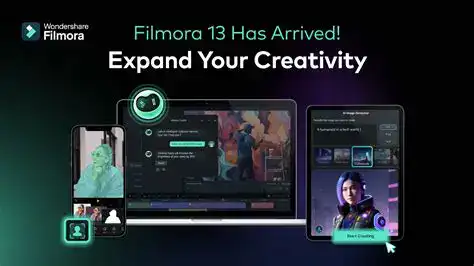
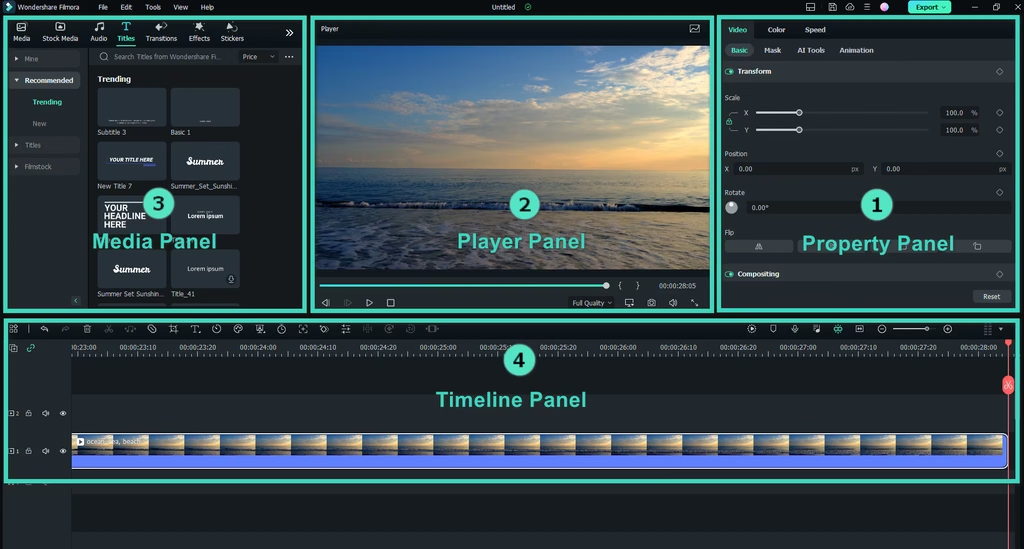
Wondershare Filmora video editing interface
Choosing video editing software can be surprisingly difficult. Some editors are easy to learn but lack advanced controls, while professional applications offer enormous flexibility at the cost of a steeper learning curve.
Wondershare Filmora tries to find a balance between the two.
It offers a relatively approachable editing workflow, a large collection of effects and templates, and an increasing number of AI-powered tools. Unlike basic mobile editors, Filmora can handle more complex desktop projects, yet it doesn’t require beginners to learn an entirely professional workflow before creating their first video.
For people making YouTube videos, product reviews, gaming clips, tutorials, or travel videos, that combination is appealing.
But with alternatives such as CapCut, DaVinci Resolve, and Adobe Premiere Pro available, is Filmora worth paying for in 2026?

Wondershare Filmora
Video Editing Software for Creators
AI Tools · Effects & Templates · 4K Export
Try Filmora and explore the available plans.
Visit the official Filmora website
1. An Easier Way to Start Editing Videos
The biggest appeal of Filmora is that it aims to make video editing accessible without removing all the useful creative controls.
The basic workflow is straightforward: import footage, place clips on the timeline, trim unwanted sections, add titles or music, apply transitions, and export the finished video.
You can also use multiple tracks, keyframe animation, color adjustments, motion tracking, and other more advanced editing tools as your skills improve. Filmora’s official feature list includes more than 100 advanced editing features across its paid plans.
This makes Filmora particularly attractive to beginners who have outgrown basic phone editors but aren’t ready to deal with the complexity of a professional editing suite.
For example, someone creating a product review can combine footage, background music, captions, close-up shots, and transitions in one project without needing several separate applications.
Wondershare Filmora AI tools and templates
2. AI Tools Are One of Filmora’s Biggest Attractions
AI is becoming an increasingly important part of video editing, and Filmora has built many of these tools directly into its workflow.
In Version 16.0, Filmora introduced features including AI Media Analysis, Smart Text Correction, Camera Tracking, and Color Mask. It also improved game recording, automatic color adjustments, and caption workflows. (Filmora Version 16.0 release notes)
These features are useful because they target some of the more repetitive parts of creating a video.
For instance, automatic text correction can help identify caption errors, while AI media analysis can make it easier to find suitable clips in a project.
Earlier Filmora 15 updates also introduced tools such as AI Video Extender and prompt-based video editing, which can help creators extend footage or modify video elements through text instructions. (TechRadar’s 2026 Filmora review)
Of course, AI tools won’t automatically make a video good. Storytelling, pacing, shot selection, and sound still matter. Their real value is reducing the time spent on repetitive tasks.
3. Templates and Effects Make Content Creation Faster

Another reason people choose Filmora is its library of creative resources.
Depending on the plan and asset subscription, users can access transitions, effects, filters, animated titles, music, sound effects, and ready-made templates. The official store advertises a large collection of creative assets, with access varying by subscription tier. (Filmora plans and pricing)
This is particularly useful for creators who want polished results without designing every visual element themselves.
A gaming video might benefit from animated titles and transitions. A product review might need clean labels and simple zoom effects. A travel video might work better with cinematic titles and music.
Filmora provides a convenient starting point for these projects.
The trade-off is that many premium assets are tied to paid plans or additional subscriptions. Before purchasing, make sure the effects and templates you actually want are included in the plan you choose.
4. Is Filmora Good for YouTube and Product Reviews?
I think Filmora’s intended audience makes the most sense when you consider the kind of videos people actually create.
For a typical YouTube product review, the workflow might involve:
- Cutting together product footage and close-ups.
- Adding voice-over, background music, and captions.
- Using titles to highlight important features.
- Adjusting color and brightness.
- Exporting a finished video for YouTube.
Filmora has tools for all these tasks without requiring users to build a complicated workflow around multiple applications.
It also supports more advanced editing features as projects become more ambitious.
For creators who produce videos regularly but don’t need the full depth of a professional post-production workflow, this can be a sensible middle ground.
5. Free vs Paid Filmora: What Should You Know?
Filmora offers a free version, but it is important to understand that free access to the editor does not mean every feature is free.
The free plan has limitations, including the lack of AI generation credits. Paid plans add features such as watermark-free exporting, more cloud storage, AI credits, and access to additional creative assets. (TechRadar’s 2026 review, official plan comparison)
As of October 2026, the official U.S. Windows store lists these examples:
| Plan | Displayed price | Best suited for |
|---|---|---|
| Basic | $49.99/year | Regular editing and core features |
| Advanced | $59.99/year | Users who need monthly AI credits |
| Premium | $99.99/year | Users who want more AI credits and creative assets |
| Perpetual | $79.99 one-time | Users who prefer a one-time payment |
Prices are from Filmora’s U.S. store and may change. Plans, feature availability, and upgrade policies can differ by operating system and region. The perpetual Windows license is listed with updates limited to Filmora 16. Check the official pricing page before buying.
My suggestion is to start with the free version and test the actual editing workflow before paying. Check the export restrictions carefully, and don’t purchase a higher-tier plan just because it includes AI features you may never use.
6. Filmora vs CapCut, DaVinci Resolve, and Premiere Pro
Filmora becomes easier to evaluate when compared with its main alternatives.
CapCut is a good choice if you want to create short-form social media content quickly, particularly with templates and automatic captions.
DaVinci Resolve is more attractive if you want advanced color grading and a powerful free editing environment. It also offers room to grow into more demanding creative workflows.
Adobe Premiere Pro makes more sense for users who need detailed timeline control, professional collaboration workflows, or integration with After Effects and other Adobe applications.
Filmora sits between these options. It aims to provide more creative control than a basic editor while remaining approachable to people who don’t need every professional feature.
There is no universal winner. The right choice depends on whether you value simplicity, advanced editing, color grading, AI assistance, or the surrounding software ecosystem.
Final Thoughts: Who Should Choose Filmora?
Wondershare Filmora is worth considering if you want a video editor that combines a relatively accessible workflow with a broad set of creative tools.
Its biggest strengths are its approachable timeline, ready-made effects and templates, and growing collection of AI-assisted features. The main drawbacks are that some features require credits or paid plans, and beginners may still need time to learn the interface.
I wouldn’t automatically recommend Filmora to everyone. If you only need very simple short videos, CapCut may be enough. If you want to learn professional editing without paying for the software immediately, DaVinci Resolve is a strong alternative.
But if you want a middle ground between beginner-friendly editing and more advanced creative control, Filmora deserves a place on your shortlist.
More Video Editing Guides
If you’re still deciding which editor to use, start with my guide to [Best Video Editing Software in 2026: Free and Paid Editors Compared].
You can also read my other reviews:
- [DaVinci Resolve Review: Is It Still the Best Free Video Editor in 2026?]
- [Adobe Premiere Pro Review: Is the Industry Standard Still Worth It in 2026?]
- [CapCut Review: Is This Still the Best Video Editor for Beginners in 2026?]
- [Final Cut Pro Review: Is Apple’s Video Editor Still Worth It in 2026?]
Replace the bracketed titles with links to the corresponding posts in WordPress.
1 thought on “Wondershare Filmora Review: Is It Worth It for Beginners in 2026?”