When people think about video editing software, names like Adobe Premiere Pro and DaVinci Resolve usually come to mind.
But for many beginners, those programs can feel like too much.
You might simply want to cut together some travel footage, make a gaming clip, add subtitles to a YouTube video, or create a short video for social media. In that situation, learning a professional editing workflow can sometimes feel unnecessary.
This is where CapCut makes a lot of sense.
CapCut is designed around a much simpler idea: make video editing fast and accessible. It is available across desktop, web, and mobile platforms, and its current feature set includes AI tools such as Script to Video, Auto Captions, Auto Reframe, AI Presenter, and Text to Speech.
So after all the recent changes and the growing number of AI features, is CapCut still one of the best choices for beginners?
I think the answer is yes — but it depends on what you want to create.
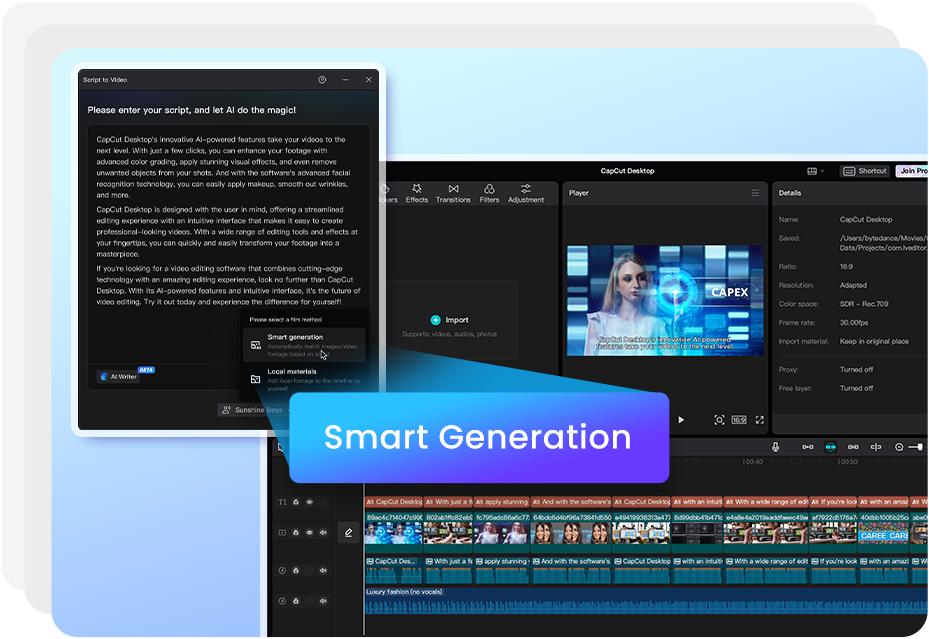
CapCut
🎬 Easy Video Editing
🤖 AI-Powered Tools
📝 Auto Captions
📱 Desktop, Web & Mobile
🎨 Templates & Effects
The Biggest Advantage: You Can Start Editing Immediately
The first thing I like about CapCut is that it doesn’t make beginners feel stupid.
When you open professional software for the first time, you can easily spend more time figuring out the interface than actually editing your video.
CapCut takes a much more approachable route.
The basic workflow is straightforward:
Import your clips → put them on the timeline → trim → add text or music → export.
That sounds simple, but simplicity is one of the hardest things for software companies to get right.
For someone making their first YouTube video or editing a short travel clip, CapCut lets you start creating almost immediately.
AI Is a Big Part of the CapCut Experience
CapCut has increasingly incorporated AI into its workflow.
Its desktop editor currently promotes features including Script to Video, Auto Captions, Auto Reframe, Auto Cutout, Text to Speech, AI Presenter, and Smart Search.
Some of these features are more useful than others, but a few can genuinely save time.
For example, Auto Captions can automatically generate subtitles from spoken audio, which is extremely useful for YouTube videos, interviews, tutorials, and short-form content.
Instead of manually typing every line, you can generate the captions first and then correct the mistakes.
That’s a small feature, but when you edit frequently, small time savings add up quickly.
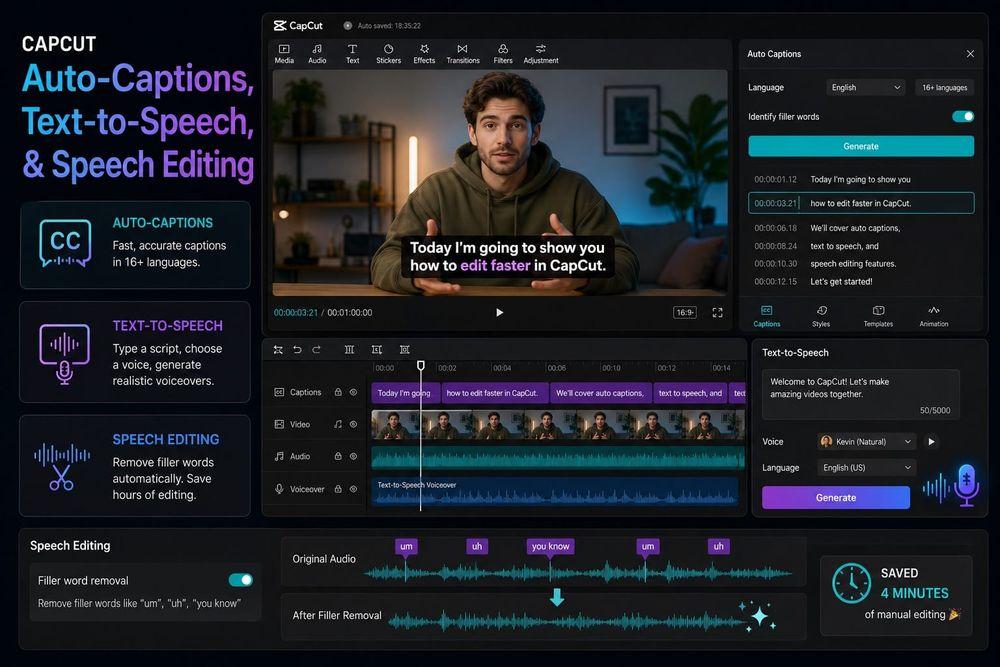
Script to Video Is Interesting for Beginners
One of CapCut’s more ambitious tools is Script to Video.
You can start with an idea or script, allow CapCut’s AI tools to generate a structure, and then turn that into a video project with elements such as subtitles, voiceover, and music.
I wouldn’t treat this as a replacement for a human editor.
AI-generated videos still need to be checked and refined, especially if accuracy, storytelling, or a specific visual style matters.
But for someone who doesn’t know where to start, having AI generate a rough first version can remove a lot of the initial friction.
Great for Short Videos and Social Media
This is probably where CapCut is strongest.
If your main goal is:
- TikTok
- YouTube Shorts
- Instagram Reels
- Quick product videos
- Gaming highlights
CapCut makes a lot of sense.
Its templates, effects, transitions, captions, and simple timeline workflow are designed around getting content finished quickly.
This is also why I wouldn’t directly compare CapCut and Premiere Pro by saying one is simply “better.”
They are solving different problems.
Premiere Pro is about control.
CapCut is about speed.
What About Longer YouTube Videos?
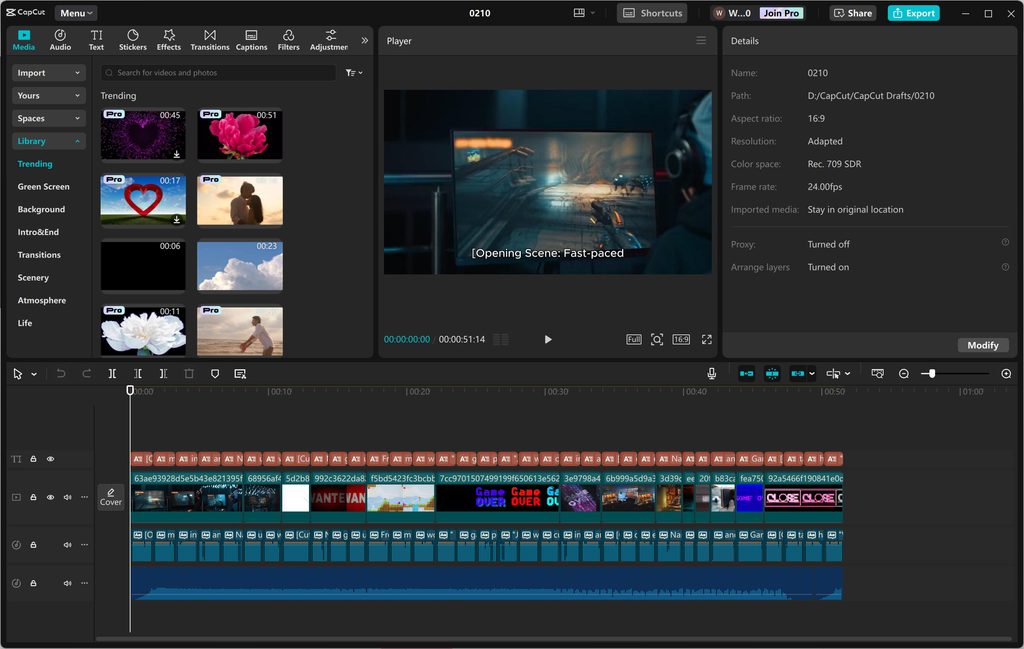
CapCut has become more capable of handling longer-form projects too, and its desktop editor provides a multi-track timeline rather than being limited to short mobile edits.
You can edit longer videos, add multiple layers, work with audio, captions, transitions, effects, and color adjustments.
However, once a project becomes particularly complicated, I still think a professional editor such as DaVinci Resolve or Premiere Pro provides a better environment.
That’s not necessarily a weakness.
It’s simply the difference between a tool designed to be approachable and one designed to provide maximum control.
Free vs Paid CapCut
This is where things have become more complicated.
CapCut currently offers different membership levels, including Standard and Pro, and the exact price can vary depending on your region, platform, and promotional offers.
The paid versions provide access to additional premium materials and advanced features. CapCut’s current Pro information also highlights expanded AI capabilities and cloud storage.
So I wouldn’t subscribe immediately.
My suggestion is simple:
Try the free experience first.
If the free tools already let you finish the videos you want to make, there may be little reason to pay.

CapCut vs DaVinci Resolve
This is probably the most important comparison for beginners.
CapCut
Better if you want:
Simple editing + AI + templates + fast results
DaVinci Resolve
Better if you want:
Professional editing + advanced color grading + long-term learning
I would probably recommend CapCut to someone making their first few videos.
But if that person eventually becomes serious about filmmaking, YouTube production, or camera-based content, I’d strongly recommend learning DaVinci Resolve as well.
You can read my full DaVinci Resolve Review here.
CapCut vs Premiere Pro
The difference is even more obvious here.
Premiere Pro gives you much deeper timeline control and integrates closely with other Adobe applications.
CapCut is much easier to pick up.
For a quick social media video, I’d choose CapCut.
For a large professional project, I’d choose Premiere Pro.
You can read my full Adobe Premiere Pro Review here.
Who Should Use CapCut?
I think CapCut is particularly suitable for:
Beginners who have never edited before.
Social media creators who need to produce short videos quickly.
YouTubers who want a simple editing workflow.
Gamers making highlights and clips.
Travel creators who want to turn phone footage into finished videos quickly.
For professional film production, however, I’d look at more advanced tools.
Final Thoughts
The reason I still like CapCut in 2026 is not because it has the most advanced editing features.
It doesn’t.
Its strength is that it makes video editing feel approachable.
You don’t need to understand professional color grading, complicated timelines, or advanced audio workflows before you can make something.
And with AI tools such as Auto Captions, Script to Video, Auto Reframe, Text to Speech, and Smart Generation, CapCut is becoming more than a simple mobile editor.
For beginners and short-form creators, that’s a very compelling combination.
For me, the rule is simple:
Want to finish a video quickly? Use CapCut.
Want to learn professional video editing? Move toward DaVinci Resolve or Premiere Pro.
The good thing is that starting with CapCut doesn’t prevent you from making that transition later.
More Video Editing Guides
Not sure which editor is right for you?
Start with my guide:
Best Video Editing Software in 2026: Free and Paid Editors Compared
You can also read:
DaVinci Resolve Review: Is It Still the Best Free Video Editor in 2026?
or
Adobe Premiere Pro Review: Is the Industry Standard Still Worth It in 2026?
1 thought on “CapCut Review: Is This Still the Best Video Editor for Beginners in 2026?”